
 by Ansel on Jul. 22, 2026 | NO COMMENT
Your iPhone keeps restarting after an update, leaving you staring endlessly at a frozen Apple logo. Facing a locked, unresponsive device when you need it most is panic-inducing, especially when you realize the photos of your toddler, critical work notes, and unsaved messages trapped inside matter far more than the physical phone itself. You might be experiencing a stubborn boot loop, an unresponsive black screen, or an iOS update failed error, leaving you desperate for a software fix that won't wipe your digital life clean.
Most online tutorials instruct you to push buttons until you factory reset the device, completely ignoring your need to protect existing data. We know how stressful it is to read those sterile support pages while wondering if your memories are already gone. This guide provides a tested, repair-first procedure designed for real people dealing with real data emergencies. We will prioritize securing your memories before tackling the deeper software errors, ensuring you can restore system stability safely.
Before you plug your device into a computer and start frantically pressing buttons, you must pause and decide which method fits your current situation. You generally have two paths: standard manual fixes using Apple's official desktop software, or utilizing a specialized software recovery tool.
Manual methods involve using Apple's official desktop software (Finder on macOS or iTunes on Windows) to communicate with your device and force a system update. If your device is already showing the recovery screen, this related article on iPhone stuck in recovery mode explains why the issue often appears during or after an iOS update.
1. Technical Skill: Medium to High. You must time your button presses perfectly to enter specific recovery states.
2. Safety Risk: High, if you are moving too fast. One wrong click during the desktop prompt can erase the entire device permanently.
3. Time Cost: Moderate, heavily dependent on your internet speed for downloading massive firmware files.
4. Success Rate: Good for basic update glitches, but less effective for severe system corruption.
A specialized software tool offers an automated procedure for complex system issues, designed to navigate around standard manual errors.
1. Technical Skill: Low. The software interface walks you through the background tasks and handles the firmware downloads for you.
2. Safety Risk: Lower. These programs are built to isolate your data from the corrupted operating system.
3. Time Cost: Fast. Step-by-step interfaces streamline the entire process.
4. Success Rate: Very high for persistent boot loops and frozen screens, assuming the logic board is still physically intact.
Evaluating your data loss risk is the most crucial step you can take right now. If your priority is protecting irreplaceable family photos and critical notes, you must attempt to secure those files before executing deep system overrides.
It is a common, highly valid question: How can I back up a phone that won't even turn on properly? Before choosing a repair method, it is also useful to understand what iTunes backup saves, because a local computer backup may be your safest fallback before deeper system repair. If you have been frantically Googling for solutions, you likely know that standard computers (and iTunes) usually will not recognize a phone stuck in a constant restart loop.
This is where a premium, specialized tool like Primo iPhone Data Recovery comes into play as your pre-repair safety net. It is a paid subscription tool, and we want to be completely transparent about how it works and its limitations.

Primo iPhone Data Recovery helps you scan and recover lost iPhone data from iOS devices and backups. Click Here to Free Download
When a standard computer connects to an iPhone, it politely waits for the iOS operating system to fully load before it attempts to read the storage drive. If iOS keeps crashing (a boot loop), the computer never gets permission to see your files.
Primo Data Recovery works differently. It uses low-level communication protocols to bypass the corrupted, crashing iOS interface. Instead of waiting for the phone to "turn on," the software sends direct commands to mount the internal storage file system. This allows the program to safely scan and pull critical photos, messages, and notes directly to your computer's hard drive while the phone screen is still frozen.
• Connect the Device: Plug your phone into your desktop computer using a certified, high-quality USB cable.
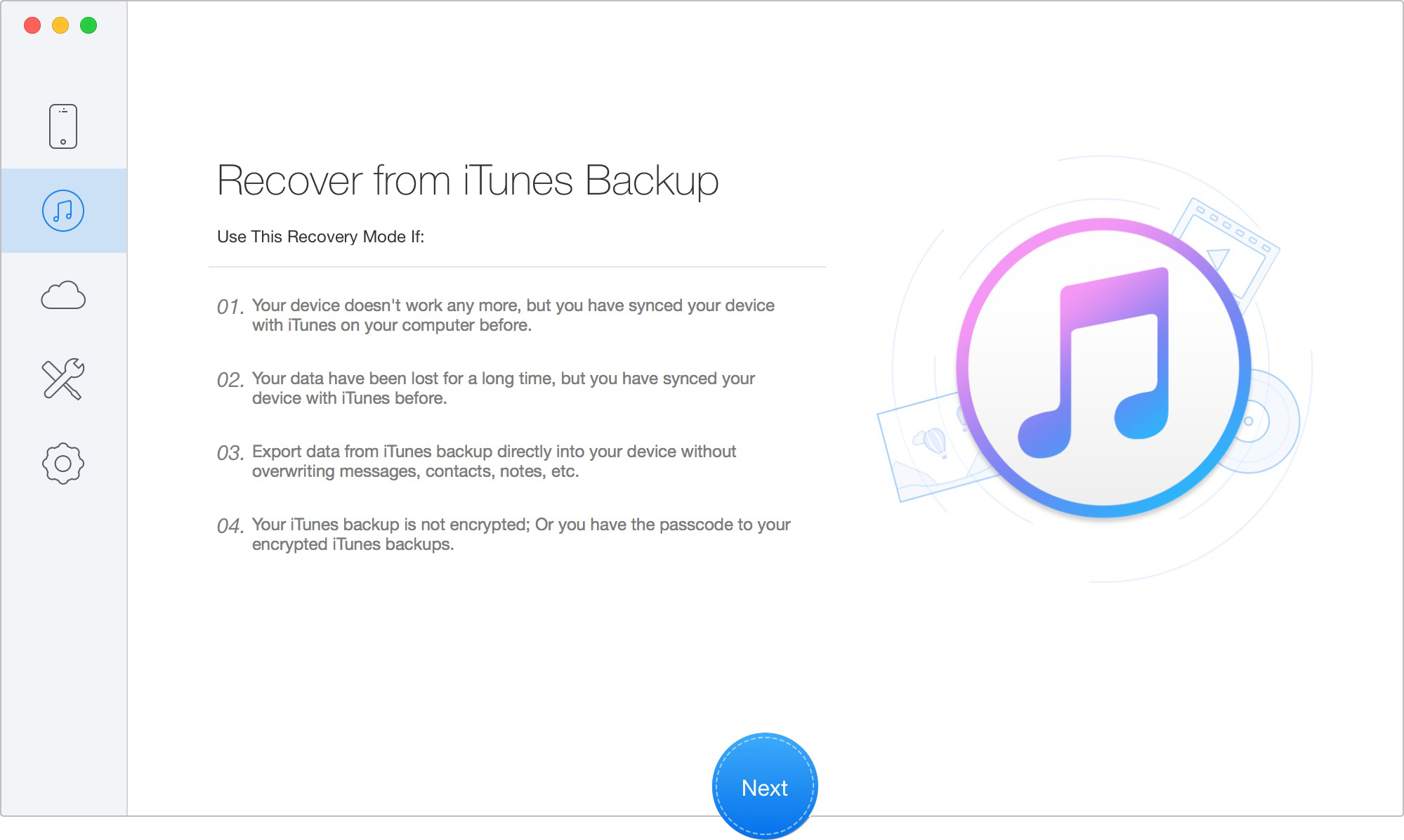
Recover Data from iTunes Backup Mode
• Run the Bypass Scan: Allow the tool to interrupt the boot cycle and safely read the internal storage at a lower system level.
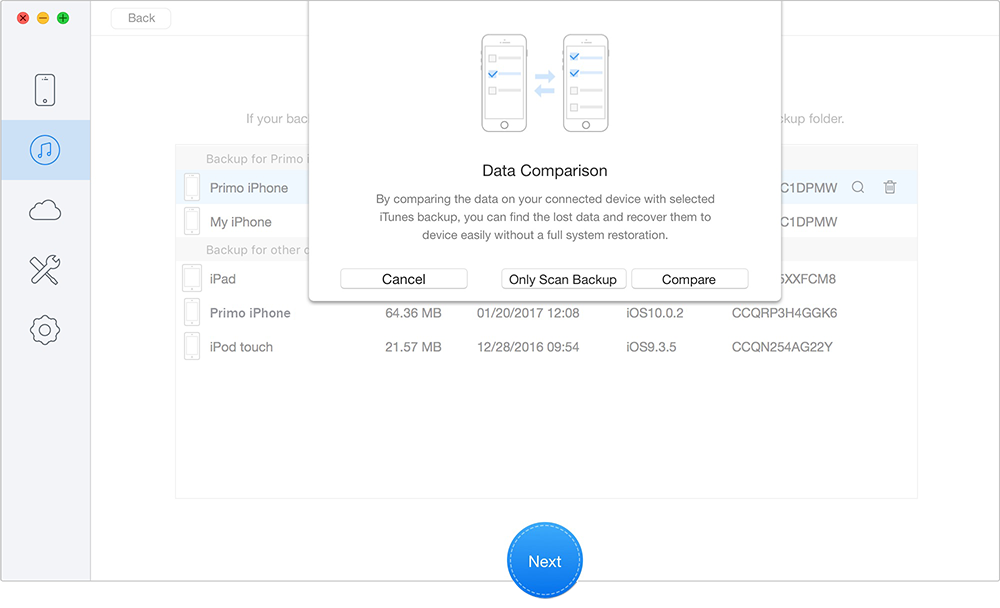
Scan Lost Data from iTunes Backup
• Extract the Files: Save your crucial information directly to a folder on your local desktop.
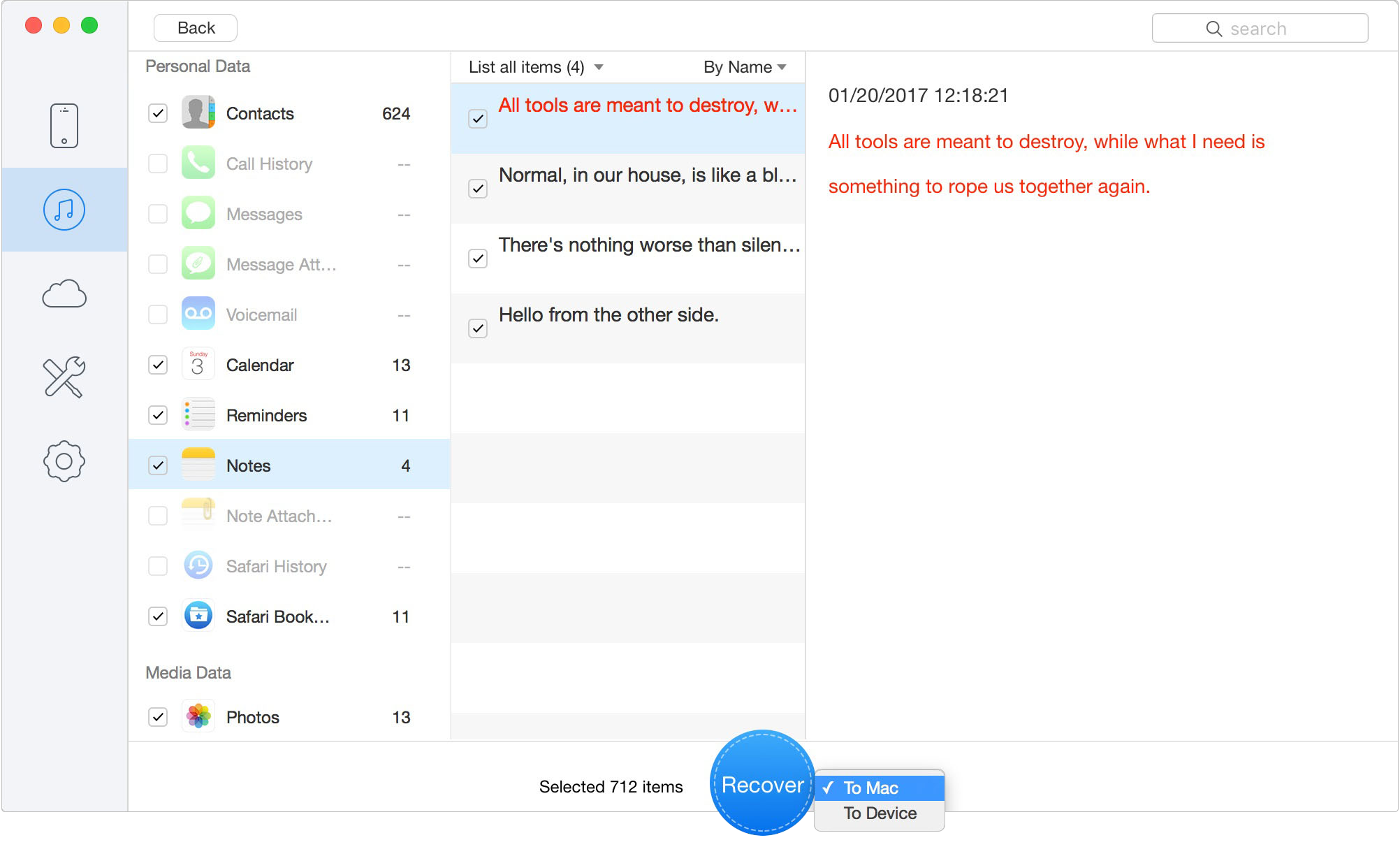
Recover Data to Computer or iOS Device
The Honest Limitation: This software is highly effective for software glitches, but it is not magic. If your phone's internal logic board is fried, or the storage chip has suffered catastrophic physical damage, the software will not be able to read it.
However, if this is purely a software crash, executing this extraction first separates your personal information from the corrupted operating system. Once your memories are safely copied to your computer, you can comfortably proceed to the aggressive manual repair steps below without the lingering anxiety of permanent data loss.
If you have extracted your files, or if you simply want to attempt to fix the software problem manually right now, you must follow strict, precise procedures. The goal is to instruct your computer to reinstall the operating system without overwriting your user directory.
To do this, you must put the phone into Recovery Mode. This requires exact timing. Have your Mac (with Finder) or Windows PC (with iTunes open) ready and your device plugged in.
• Connect the Cable: Plug your iPhone into the computer.
• Volume Up: Press and quickly release the Volume Up button.
• Volume Down: Press and quickly release the Volume Down button.
• Hold the Side Button (Do Not Let Go): Press and hold the power/side button.
• Wait for the Icon: The screen will likely go black, and then the Apple logo will appear. Keep holding the button. Do not let go until you see the Recovery Mode screen, which looks like a picture of a laptop or computer and a charging cable. This usually takes about 15 to 20 seconds of continuous holding.
Once your computer detects the device in this state, a prompt will appear on your desktop monitor offering two choices: Update or Restore.
🛑 CRITICAL WARNING: UPDATE VS. RESTORE
This is the most important click of the entire process.
1. Choose "Update" FIRST: Clicking "Update" commands the computer to download a fresh copy of iOS and reinstall it, leaving your personal files completely untouched. It simply patches the broken system files.
2. Never blindly click "Restore": Clicking "Restore" immediately wipes the phone back to factory settings, erasing absolutely everything on the device. If you are focused on safety, always attempt the Update procedure first. If you are unsure about the difference between updating and restoring, this guide explains what restoring your iPhone means and why it can erase current device data.
Guides often make this sound instantaneous, but in reality, it can be a slow, clunky process. Here is what you should know from actual experience:
1. "Extracting Software" Takes Time: If iTunes or Finder gets stuck on a progress bar that says "Extracting Software" for 15 minutes, do not panic. The computer is unpacking a massive 6GB+ firmware file. Just leave it plugged in and let it work.
2. The 15-Minute Timeout: If the firmware takes longer than 15 minutes to download (due to your internet speed), your iPhone will automatically exit Recovery Mode and go back to a black screen or boot loop. This is normal. Let the download finish on your computer first. Once the download is complete, repeat the button combination to put the phone back into Recovery Mode, and click "Update" again. It will skip the download and start the installation immediately.
3. Screen Flashes: Your screen might flash bright green or display strange static for a split second before going black during the update process. Do not unplug the phone; this is a normal hardware handshake.

Designed to fit effortlessly into your iPhone data recovery.
Download NowWhen a standard update fails, you might face a stubborn black screen or a specific iTunes notification like "error 4013." For users seeing this exact error, this article on iTunes error 4013 and 4014 gives more context before attempting another restore. If you have tried the Recovery Mode Update multiple times and it continues to fail, your final software option is DFU mode (Device Firmware Update).
DFU mode interfaces directly with the hardware, bypassing the device's bootloader entirely to write a completely fresh operating system from scratch.
We must be crystal clear: DFU mode is an aggressive, destructive procedure. If your device reaches the point where a DFU reset is necessary, the system will be entirely wiped. If you did not extract your photos and notes previously using a data recovery tool or iCloud, running a DFU reset carries a guaranteed data wipe. The software will be repaired, but the internal storage will be factory empty.
Entering DFU mode is notoriously tricky and requires exact counting.
• Connect your iPhone to your computer and open Finder/iTunes.
• Press and quickly release the Volume Up button.
• Press and quickly release the Volume Down button.
• Press and hold the Side Button until the screen goes completely black.
• As soon as the screen goes black, press and hold both the Side Button and the Volume Down button simultaneously for exactly 5 seconds.
• After 5 seconds, release the Side Button, but keep holding the Volume Down button for another 10 seconds.
• The Result: If the screen stays completely black (no Apple logo, no computer icon), you are in DFU mode. Your computer will alert you that it has detected a phone in recovery mode. (If the Apple logo appears, you held the buttons too long and must start over).
From here, your only option on the computer will be to click "Restore," which will wipe and rebuild the phone.
If you repeatedly attempt to update and restore the system, even trying DFU mode, and the device continues to fail or loop, you may not be dealing with a software issue at all. It is critical to understand the boundary between a corrupt iOS operating system and physical hardware damage.
When a software update fails, the logic board and battery are physically fine; the code telling them how to operate is simply scrambled. Reinstalling the operating system resolves this.
However, if your phone suffered recent drops, water exposure, or has a severely degraded battery, software tools cannot fix it. A failing logic board, a damaged earpiece speaker assembly, or a broken charging port will often trigger a restart loop that looks completely identical to a software crash.
If you have carefully followed the safe manual methods, tried swapping out your USB cables, and tried a different computer entirely, yet the phone still fails to boot, you must stop trying software fixes. Continuing to force heavy installations on a failing logic board can cause further electrical damage. At this point, escalate the device to an authorized repair technician for a physical micro-soldering inspection.
Primo iPhone Data Recovery helps you scan and recover lost iPhone data from iOS devices and backups. Click Here to Free Download
Q1: What is an iOS software repair?
It is the procedure of fixing a corrupted operating system—such as resolving a boot loop or a frozen Apple logo—by reinstalling or patching iOS files using a computer.
Q2: Will fixing the software erase my data?
It depends entirely on the method you choose and the buttons you click. Securing your files requires careful steps, such as utilizing data extraction tools first or strictly choosing the "Update" option rather than "Restore" on your computer.
Q3: Should I choose Update or Restore?
Always choose "Update" first. The Update option patches the operating system while attempting to keep your user files completely intact. The "Restore" option completely erases the phone and returns it to factory default settings.
Q4: Can a software update fix hardware problems?
No. If your device has a shattered screen, a damaged logic board, or liquid corrosion, reinstalling the software will not fix the issue. You must seek physical diagnostic services.
Q5: When should I use data recovery software?
You should use a data recovery tool immediately if your device is stuck in a loop, you do not have a recent iCloud backup, and you want to ensure your files are safely copied to a desktop computer before attempting deeper, riskier system resets.
Navigating a boot loop or a black screen is an incredibly stressful experience, but it does not have to end in a disastrous loss of your digital life. By taking a deep breath and properly understanding what your device is doing, you can confidently choose a safe path forward.
Remember, securing your memories must always come before aggressive troubleshooting. Taking the time to attempt a data bypass or strictly using the "Update" function protects what matters most. If you are locked out of your phone and terrified of losing your family photos, Primo iPhone Data Recovery offers a tangible way to safely extract your vital files to your desktop first. Once your data is secured, you can confidently proceed with system resets, knowing your memories are safe.
Ansel A member of PrimoSync Support Team, passionate for mobile industry and ready to help you with Apple related issues.
Get Up-to-the-minute iPhone Tips & Enjoy Awesome Deals.



Design Simple and Beautiful Software
with Passion & Love

